It’ here. The time has finally come. Earlier this week Apple announced in a press release the discontinuation of the iPod Touch. It’s not surprising, all things considered. They haven’t done anything to upgrade it since 2019, and even then it wasn’t much more than a processor and color change.
To me, the prolonged death of iPod has been a sad thing to watch. The Touch always struck me as less of an iPod and more of a nerfed iPhone, because that’s exactly what it is. I’ve also heard it referred to (oddly) as a nano iPad, but whatever you call it there is no denying that it is the last in a long line of devices that defined an era for an entire generation.
Transforming Portable Music
Being born in the late 80’s I remember well the pre-digital music era. Cassette tapes and CD’s were a way of life long before vinyl records would make a comeback in popularity with hipsters everywhere. The Walkman, Discman, and their knock-offs ruled the 80’s and 90’s when it came to portable music and taking your collection with you.
I remember carrying around my portable CD player with a small book of CD’s everywhere I went for years until I got my first MP3 player. Then one day the guy who lived in the dorm across the hall from me showed me this cool new thing called an “iPod”.
2nd generation iPod (Classic) released in 2002
It was the first portable music player that with an internal hard drive allowing you to carry “1000 songs in your pocket”. With it, Apple did what Apple does. Pick something that a lot of companies were doing mediocrely and do it better than anyone else. Even when our other college friend showed up with his Zune from Microsoft, it didn’t compare to the iPod of that day — if you disagree, feel free to comment below.
Transforming the Music Industry
Then there was the iTunes store. By the end of its life iTunes had become a slow and bloated piece of software, but in the early days it was a solid media player. The introduction of the iTunes store, however, changed the music game, and the music industry, forever.
For the first time it provided a way to get digital music — and here’s the keyword — LEGALLY and affordably. Like a song? Buy it for $0.99. Like an album? Buy it for $9.99. Want a deluxe edition with extra songs or music videos? Just pay a few dollars more. This was unheard of. Typically if you liked a song you would just have to spend $15 for the album with no guarantee that you’d like the rest of the songs on it. If you were lucky, they might release the song on it’s own disc as a single for $5 or $6, but there was no way to just get the songs you wanted without going with peer-to-peer sharing services like Napster or Limewire.
At first the industry resisted this change, but eventually they had to capitulate and embrace this change. The release of iTunes for Windows was the final nail in this coffin and there was no going back. Within a few short years we would see record labels release tracks and even full albums on YouTube, and eventually we would see the rise of streaming services like Pandora and Spotify.
The End of an Era
The death of iPod has been lingering for some time now. The iPod Classic line was discontinued in 2014. The iPod Nano and iPod Shuffle were both discontiniued in 2017, and now the iPod Touch is being discontinued. You can still buy them from Apple for now, but after that you’ll have to rely on third party sellers if you want one.
While it’s a little sad to officially see the end of this legendary product, it does make sense, and honestly I’m a little surprised that Apple held onto it as long as they did. The Cupertino company is well known for not being afraid to cut products and features that they feel should be deprecated in favor of their preferred new technologies. In 2022 we have Spotify, Apple Music, Pandora, and more. Most people these days listen to music on their phones so there’s no real need for a dedicated music player. However, if you’re into that. be sure to check out my upcoming post Why Go Retro in 2022: Part 3 – Audio Players.
Much like other fondly remembered tech iPod’s has been surpassed by newer and shinier products from Apple and others, but there is no denying the role that it played in helping the music industry and the consumer media markets to mature for the 21st century. And at the end of the day, for people like me, it’s still the preferred way to bring your favorite music with you when you’re on the go.
Okay, so I know what you might be thinking: “Dan, you’re two years late to review this thing,” and also, “I thought you only did stuff with old tech?” Well yes, but actually no. I just mostly focus on old stuff because it’s wonderful and tons of fun, but I do enjoy getting my hands on the new shiny every now and then. In this case it’s a 2020 MacBook Air that I was issued by my employer. And as far as the timing goes, I would have loved to have reviewed this when it launched, but unfortunately I’m not a blogger with sponsors or benefactors that finance these kinds of things.
First Impressions
I’ve been using this thing for roughly a week and so far I’m really liking it. Performance-wise it’s been a huge improvement to the machines I’m used to using — even with all of their upgrades. This model includes 8 GB of memory, a 500 GB SSD, and Apple’s M1 chip. Most people have moved on and have been raving about the M1 Pro, M1 Max, and M1 Ultra. Those chips are crazy with their performance, but to be honest, for my workload — writing, web browsing, technical scripting, and the occasional media edit, the M1 is more than enough.
For comparison, my daily drivers are a mid-2012 MacBook Pro with a Core-i7 CPU and an upgraded 16 GB of memory, and a low-mid ranged Windows box that I buit back in 2017. It runs a Pentium 4 CPU, has 8 GB of DDR4 memory, but has no GPU. It’s barebones, but it works for most of the tasks I throw at it. Between the two, the Mac is clearly the more powerful of the two despite being 5 years older. That said, even as a 10 year old laptop it can out compete many of the computers I see people using today.
That said, that laptop (like many of Apple’s Intel-based Macs) gets hot… like, uncomfortably hot. Hot enough that I usually end up using it on a desk or table, or I get a thick book or a board to set it on so it doesn’t burn my legs. The Air, on the other hand, has yet to get even mildly warm. I’ve used it on my lap for hours and the only time I get uncomfortable is if I’m wearing shorts and the hinge starts iritating my skin. I even spent the evening watching videos with my kids on it last night and it didn’t heat up at all.
The operating system is also an upgrade. My 2012 Mac is currently running 10.15 Catalina which is the last officially supported version for that device. The Air is running the latest version of 12.2 Monterey and while it’s not the first time I’ve used Monterey, it is the first time I’ve used it with current hardware. It’s fast and responsive, and integrates well with my other newer iOS devices by utilizing the features of macOS that my 2012 laptop physically can’t.
The Keyboard
At one point, about 5 years ago, I had the opportunity to try out a MacBook (I can’t remember if it was an Air or a Pro) and it was a pretty awful experience. Now at that point I wasn’t much of a macOS kind of guy — in fact I was pretty much exclusively using Linux at the time — but it wasn’t the OS that I had a problem with; it was keyboard. This was shortly after Apple had transitioned to that terrible “butterfly” keyboard because their design team apparently decided that all of their laptops needed to basically disappear when viewed from the side so they replaced the perfectly fine and quality scissor keys with these new mechanisms that allowed for a lower profile. While the flaws of the butterfly keyboard are well documented elsewhere, my issue when trying it out was really just the typing experience.
As a writer and a tech professional, a quality typing experience is important to me. The key travel, the level of tactile feedback, even the sound play a role in the typing experience. The butterfly keyboard failed on every one of these points. Their ultra-low profile mininmized the key travel to the point that it almost felt like you typing on a flat surface. Tactile feedback on the key press was almost non-existant, and the sound was very muted. With that all said, I was pleased to find that the butterfly keyboard is a thing of the past and this 2020 MacBook Air has a new and improved keyboard that fixed all of these issues for me. It’s not quite as enjoyable to type on as my 2012 MacBook Pro’s keyboard, or even my 2004 ThinkPad’s keyboard, but those are honestly pretty high marks to try and hit.
Ports
The only real issue, and one that has been discussed by mamy people over the years is the lack of ports. On my 2012 Pro, I’ve got 2 USB (2.0) ports, a FireWire 800 port, a mini Display Port/Thunderbolt 2 port, an SD card reader, a 3.5 mm headphone jack, and a MagSafe 2 charging port. On this slick little machine I have a headphone jack and two USB-C ports. That’s it. They’re not even Thunderbolt ports!
Now I get that Apple likes to push innovation and try to drive consumers to newer technologies, but it is a little ridiculous. Thankfully they seem to have figured out that people don’t like having options taken from them arbitrarily and have started adding ports back to their newer products. For me it’s not a deal breaker, even if I don’t like it. Like I said, this is a work machine and at work I have a USB-C dock that I can plug into that offers the ports I need, but without that luxury I would be quite frustrated by the I/O options here.
Recommendations
Final thoughts: if you’re someone who does a lot of graphical rendering, audio work, gaming or graphic design, then you should probably go with one of the more powerful Mac’s on the market, or a higher end PC instead. Likewise, if you’re not a fan of macOS or iOS than obviously steer clear of anything Apple, including the Air. That said, if you like Mac’s, iPhones, iPads, and other Apple devices you’ll like this one.
The form factor and weight make it ideal for computing on the go, even without a bag to carry it in. The display is crisp and bright making it a solid option for streaming movies or watching videos on YouTube or Odysee. The speakers are decent, but they’re still laptop speakers; definitely miles above you’re run of the mill laptop speakers though. They keyboard is solid and there’s no deck flex due to the aluminum chassis and the probable crap ton of screws holding this thing in place. The trackpad is an Apple trackpad so you get all of the gestures and multi-touch support you could want or need.
Overall I am very pleased with this laptop. Like most Apple machines, it is a solidly well-built machine. I streamed about an hour’s worth of 1080p video from YouTube and the base of the machine didn’t even get warm. Pushing 4K might get it a little toasty, but I’m a simple man who doesn’t care about such things and still respects the venerable 480i resolution of the original Xbox.
I had been considering whether or not I could really use an Air seeing as I like the power of my old Pro. If I was using an Air from, say, 2018 or 2019, I really don’t think I could. The limitations would be too much, but with these newer Air models sporting the Apple Silicon chips I am not worried about it at all. If you’re in the market for a quality laptop that is well suited to the things that most users do, the 2020 MacBook Air is a solid choice. It is a little on the pricy side coming in at $1399, but you really get what you pay for.
Earlier this week I was perusing Locals when something caught my eye. It was a post from a user named Greg Gauthier listing each operating system he’s used over the years going back to the early 1990’s. The list included his daily drivers as well as the ones he was experimenting with at the time, and it got me thinking why not compile a list of my own. It took about twenty minutes or so to recall them all and to put them down on a list, but in doing so I noticed a few trends that I’d never really considered before. So I figured this could be a fun little post revisiting my own personal computing history, and an invitation for you to share yours as well! Below is a screenshot of my list which includes my daily driver, any alternative systems I was using at the time, and experimental systems that I was testing out.
The list can also be broken down into three distinct eras: The Windows Era, the Linux Era, and the Use-All-the-Things Era.
Windows 95 (1995 – 1998)
My family got our first home PC in 1995. It was a Packard Bell Legend 822CDTW Minitower running Windows 95, and it was magical. Before then I hadn’t really used a computer for anything substantial; mostly just playing Oregon Trail on my school teacher’s Apple IIGS, really, but when we got that computer I started exploring the system and finding fun things to do.
In 1997 I started middle school and, in something I did not realize as being very strange until much later, the school I was at issued all of the middle schoolers laptops. I swear I remembered them running Windows 98, but I was only there for the fall semester so it must have still been 95 (cut me some slack, I was eleven at the time), but regardless of which OS it was running it was so cool to have my own laptop. That may be common these days, but in the mid-90’s it was pretty unheard of! We used it to write our papers and to do homework, and as an added bonus it served as weight training as I would have to lug that 2,000 pound slab of metal and plastic on my walk to and from school.
One cool thing that I look back on fondly was the way the school was really invested in helping the students in my grade to have a leg up by requiring classes on how to use Windows (which I was already familiar-ish with) but also the ins-and-outs (as well as some advanced features) of Microsoft Office 97 which serve me well to this day. It was that same year that we had to take a computer class — yes, a different computer class. I remember walking into the computer lab and being very confused because we had these fancy new Compaq laptops with the latest software, but we were being taught MS-DOS on old PC compatible machines. If I am totally honest, I hated it back then, but I’ve grown to love the DOS environment over the last few years.
Windows 98 (1998 – 2000)
We had Windows 98 at home when it launched. To be totally honest, I don’t recall much at this time. I wasn’t much of a tech nerd at this point and this part of my life was a little fuzzy as we had a lot going on including several moves and having to get acclimated to new schools several times in the course of about two years. That said, I do have fond memories of this time. This was around the time that I started geting into PC games for the first time. My step-dad worked in IT at the time and so we had two computers in the house, both running Windows 98 and we would play games like Command & Conquer (C&C, Red Alert, and Tiberium Sun) over the LAN. We would also make pretty regular trips to the mall to visit our local Software Etc. to get our next fix. Games we played back then included things like Microsoft Flight Simulator 98 and Combat Flight Simulator 98, Delta Force, NHL 98, and a myriad of Lucasarts titles including my favorite of that era: X-Wing Alliance. It was also around this time that we got high speed internet and were able to play online with some of his friends. We would play Red Alert with his co-workers and I would constantly get demolished, but it was a great time and a lot of fun.
Windows Me (2000 – 2004)
When I shared my OS list on Locals one of the guys on there said to me, “You used ME for 4 years?!?! You’re either insane, or one tough SOB!” Now I’ve already covered my thoughts on Windows Millennium Edition in another post here, but I’ll restate my experience with it for the sake of this article. I used Windows Me because it was what I had. This was the year I started high school and so my parents gave me one of our desktops to use. I know a lot of people think it’s the worst Windows OS ever, but that was not my experience. I used it to do school work, but really it was mostly used playing games and interacting in some pretty fantastic online storytelling communities. Perhaps it was because of the hardware in the machine, or maybe it was something else, but I really didn’t have many issues with it blue screening on me or with it slowing down until 2003-ish when I started using P2P alternatives when Napster got shut down. That’s enough to kill any PC.
“You used ME for 4 years?!?! You’re either insane, or one tough SOB!”
Scott Loveless
Overall, I had a good experience with Me, which is probably why I am running Windows 2000 Professional on my vintage ThinkPad at the moment. It’s got the same look and feel, but with the stabilty of the NT 5 kernel.
FUN FACT: Many of the application install wizards on Windows to this day are still using Win2000/Me icons in them!
Windows XP (2004 – 2009)
Here’s the big one. Windows XP, in all it’s glory! Like many people my age, I loved Windows XP. It was the first consumer version of Windows to run on the NT kernel (launching with NT 5.1 if I remember correctly). Everyone remembers it because of the blue and green theme and the famed Bliss wallpaper (the green hill one), but I was more of a Windows Classic theme kind of guy. After graduation I was given one of our older PCs to replace my dying Windows Me box, and it was the one that I used through out my early college years.
I enjoyed gaming on XP, though at this point I had shifted more back to consoles with the PlayStation 2, the original XBOX, and the GameCube but it was around this time that I started getting more serious about writing. I had started taking an interest in writing fiction a year earlier thanks to one of my high school english teachers who took the time to really invest in her students and to encourage us to explore our creativity.
Also, in early 2004, I gave my life to Christ and took an interest in topics surrounding Christianity of which I have written extensively and a lot of that started on that old eMachines XP box using Microsoft Office XP. It was at this time that I started blogging as well. Looking back, I was fascinated at just how much of my personal development happened all at once which is probably why I remember using XP so fondly.
In 2005 I went to college and my life transformed pretty significantly. It was the first time I had branched out on my own and pretty early on I met my beautiful wife. This was around the time I started taking an interest in the technology itself too. I took a part time job with the school’s IT department where they had me take apart and reassemble PCs to get used to working on them. I had friends who did support work, cloning drives, scripting; all things that I use to this day, though I wouldn’t get real hands on experience doing those things for a few more years.
I went on to use XP until the Fall of 2009. We had just bought our first house and I was taking classes at a new school as I continued to pursue my Bachellor’s degree. I had given my XP tower to a friend before we moved and my wife’s XP laptop was about done, so we bought two new PCs when we moved in to the new house. One was an Acer Aspire One netbook running XP. I loved that little netbook (as I mentioned in the last post about elementary OS). The other was a Dell all-in-one machine running Windows Vista…
Windows Vista (Late 2009 – Early 2010)
Vista was… rough. I felt for Vista the same way that many people apparently felt for Me. I loved the theming of the dekstop. The Aero theme was gorgeous at the time. I liked the black taskbar with the circular start menu icon. I liked the way they built upon the improved XP start menu. I liked the glassy blue folder icons. I liked idea of the desktop widgets. I liked a lot of the design choices they made for Vista, but it was slow and cluncky. I recall back then joking that Microsoft was trying to be like Apple (who had already done many of these kinds of design elements in OS X, but better), but they just didn’t know how. Add on to that the frequently crashing applications and the intrusive User Account Controls (UAC) pop-ups and I was getting really frustrated.
It was at this time, around March of 2010 that I noticed the kid in front of me in my psychology class had a laptop that looked strange. It wasn’t a MacBook, but it definitely wasn’t Windows. I stopped him after class and asked him what he was running and he said it was this thing called Linux. So I looked it up and… well, I suppose that can wait until next time.
Over the last month or so, we have witnessed the collapse of one of my favorite FOSS projects, elementary OS. For the uninitiated, elementary is a distribution (distro for short) of the GNU/Linux (commonly referred to as just “Linux”) operating system. While distinctly Linux, elementary OS is styled to look and, in some ways, feel like Apple’s macOS. That statement may ruffle some feathers, but let’s be real here; there’s a reason it’s the landing spot for a lot of Mac users making there way over to Linux. It’s a stable desktop experience as well. It’s based on Ubuntu Linux, but to my understanding the developers break from Canonical’s (Ubuntu’s parent company) bi-annual release cycle, adopting a release-it-when-it’s ready approach.
The elementary OS project has also contributed a lot to the wider Linux community with projects such as Plank (their dock application), Geary (a nice email client), Pantheon (the desktop environment that makes Gnome 3 actually look nice), the App Center which aimed to make it easier to donate to developers by recommending a price for the different software in the store (though free is always an option), and various design elements including the elementary icon set in LibreOffice, the Humanity icon set in Ubuntu and it’s derivatives, and more. I’m sure I’m missing some things here, but the point remains that they’ve done a lot of good work over the years.
My Experience with elementary
I first discovered elementary shortly after their first release (codenamed Jupiter) back in 2011. I was new to Linux and was having fun bouncing around, distro hopping to find what I liked. I had moved to Linux as my daily driver during the summer of 2010 with Ubuntu 10.04 and later upgraded to 10.10. It was exciting and I was learning a lot about how the system worked. Unfortunately, the next year with the realease of Ubuntu 11.04, the project moved away from the amazing Gnome 2 desktop to their own home-grown environment called Unity. There’s a lot of hate for Unity (and for good reason), but these days I can see the good things about it as well. My problem was that at the time I was running a low-spec Acer netbook. Remember netbooks? Those cute little laptops with barely enough under the hood to run much more than the operating system and maybe one or two apps? Mine had an Intel Atom CPU and about 4 GB of memory so when Unity was rolled out, it slowed my machine down to a crawl.
I tried a few different distros along the way, but a few months later I discovered elementary. It was lightweight and fast on my underpowered machine, as it was still based on Gnome 2, but it was built on the Ubuntu 10.10 release. In 2012 I upgraded from Jupiter to their second major release, Luna. Luna was great, but like Ubuntu with it’s Unity desktop, elementary’s shift to developing their Pantheon desktop on top of Gnome 3 put a pretty heavy strain on my poor little netbook. Eventually I moved away from elementary, but I would revisit it with each release, actually coming back to it for almost a year in 2017 with their Loki release.
The Project’s Downfall
Unfortunately, not all good things are made to last. In early 2022 we started seeing some pretty public signs of conflict within the project. Co-founders Daniel Foré, and Casidy James Blaede decided to go their separate ways and like children in a divorce, the project fell in the middle of it all. After a pretty embarssing (in my humble opinion) Twitter thread, it was announced that elementary was now a solo operation. There is more to say about this, but there are plenty of others who have already covered it in depther. Check out Bryan Lunduke’s article on the subject if you want more info.
Final Thoughts
As of right now, elementary OS is continuing on. Foré has announced that development of OS 7 should be expected to slow down and to have fewer features which should come as no surprise. It’s possible that the project will bounce back and continue moving forward, but it’s also very possible that the project may fully collapse in which case the community would need to take over to keep it alive.
While there are plenty of people who have used elementary more regularly than I have, and many people who have actively helped develop the OS, I can’t help but feel a little sad seeing all of this happen. As I mentioned earlier, elementary was my first non-Ubuntu distro way back in 2011. I used elementary a lot in the early 2010’s and have used it off and on over the last five or six years. Elementary OS was never perfect, and it still isn’t, but it’s always been quality and while I would love to see the project continue to move foward, I have to be honest; I’m not convinced it will. Here’s to hoping I’m wrong. Cheers.
If you read my last post regarding my experience with Windows 11, you’ll know that I was not too impressed with it. In fact, I was so dissatisfied that I nuked and paved my Windows machine and went back to Windows 10 and I’m quite comfortable staying here for as long as I can. Well, unfortunately, at my job we’ve started noticing Windows 11 popping up on random users’ PCs. We in IT certainly didn’t push the upgrade, and the users don’t have the permissions required to run updates anyway, so I did some digging and it sounds like Redmond has decided that they know what is best for everyone, just like they did with the ribbon UI in Office, and are starting to issue full OS upgrades through your run of the mill Windows Updates. I actually caught a machine getting ready to reboot to run the upgrade and was able to stop it. So it got me trying to find a quick and efficient way to pump the breaks on this ridiculous decision.
Getting InControl of Updates
First of all, we did setup a GPO (group policy object) that should restrict the upgrade, but we’re not 100% sure it will work as we run Windows 10 Professional and not Enterprise. For the uninitiated, Windows Enterprise allows for much more granular control than other versions but it comes at a pretty high cost in annual licensing fees making it something we don’t have access to.
In the event the GPO fails to do what we need, I did some digging and stumbled upon a new bit of freeware from Steve Gibson of the Gibson Research Corporation and the Security Now! podcast called InControl. It’s a very basic and straightforward program that allows you to designate the latest release of Windows that you want run — 1903, 2004, 20H2, 21H2 for example — and lock the system down to that version with no install required. It appears to accomplish this by automatically adding a registry key that restricts Windows Update to that version and no farther. In the screenshot below, I have my work machine set to sit tight at Win10 build 21H2 until I tell it otherwise. So far, so good and I’ve it on that other machine I mentioned catching earlier.
InControl enabled and limiting Windows Updates to the 21H2 release.
This is in no way an advertisement or a sponsored post. It’s just a useful tool that I found works well that I wanted to share with all of you. Let me know if you give InControl a shot and what you think of it.
I’ll keep the introduction short. I’ve been using Windows 11 since September of last year and I’ve got some thoughts on it.
The Early Windows Cycle
We all know the familiar cycle of Microsoft’s flagship operating system. Bad, good, bad, good, bad, good, bad, and so on.
Windows 95, revolutionary!
Windows 98 was kind of a struggle.
Windows 98 SE fixed a lot of 98’s problems.
Windows Me, despite my experience documented here, was pretty terrible and is in the race for the worst release of all time.
Windows XP, on the other hand is in the race for the greatest release of all time.
Vista, like Millennium Edition, is widely considered to be one of the worst and was such a resource hog that a lot of XP users either reverted back, or just stayed on XP.
Windows 7, while requiring basically the same resources as Vista, fixed many (if not all) of the problems that Vista introduced; it was stable and reliable and many dedicated XP users found it to be a suitable replacement.
Windows 8.x, well… let’s be honest, Windows 8 sucked. It was a big swing and a miss as Microsoft hoped to capture the mobile phone and tablet market with an overhaul that no one asked for or wanted. Never forget the charms…
Windows 10
Windows 10 released in 2015 and wasn’t perfect, but it rectified a lot of the mistakes of Windows 8. Sure, the live tiles were still a thing, and there was no classic theme for people like me. Sure, it was kind of slow on a lot of hardware, but over time Redmond fixed those problems and introduced many welcome features including dark mode, because the world needs more dark mode in it. As of writing this, the current release of Windows 10, 21H2 is stable, responsive, and has a clean design. Sure, I wish that the non-UWP apps matched the theme a bit better (looking at you, bright white inactive title bars contrasting with my beautiful dark mode) but that’s something that I can deal with.
Windows 11
With the announcement of Windows 11 early last year there was a lot of hype within certain internet circles that we might finally see that cycle broken. Win11 looked really pretty with it’s rounded window corners, it’s colorful icons, it’s redesigned taskbar and systray, and the fresh (obviously macOS-inspired) system theme. Following a “leaked” build of Windows 11 about a week before the announcement people started downloading and testing the system out. It seemed to be a little buggy — as you’d expect from a leaked developer build — but it was also perceived to basically be a re-themed Windows 10. This led a lot… well, some of us to speculate that perhaps we would see an end to the Windows Good/Bad Cycle. If Windows 10 was finally in a good place, and Windows 11 wasn’t changing too much beyond the theming, then this might be a nice, quality refresh of a 6-year-old operating system. Yeah… that didn’t quite happen.
A Flawed Release
There was a lot to criticize about the announcement and release of Windows 11, from the overly emotional parody of an Apple keynote, to the arbitrary hardware restrictions designed — in my humble opinion — to push more hardware sales, but I would argue that there was still a good bit of excitement for the new release.
Windows 11 released on October 5, 2021. Some people loved it, and others hated it. I was somewhere in between, personally. I made the upgrade a little earlier as part of the Windows Insider program and upgraded my primary work PC — a Microsoft Surface Pro 6 — as a fresh install to get a feel of the out of box experience before switching over to the stable release after launch day.
The Good, the Bad, and the Ugly
My initial reactions were mixed. The new UI felt weird. Everything looked nice, but it didn’t feel like Windows. It felt like a theme pack you’d install on your XP laptop in 2006 to make it look more like OS X Tiger or something like that. The buttons were bigger, the icons were bigger, undoubtedly trying to merge the desktop and tablet modes that were present in Win10. It wasn’t bad, it just felt off.
That said, there were changes that I liked. The default command-line environment changed from Cmd Prompt to PowerShell, and they included the versatile Windows Terminal application by default. I loved this, because I’d been running the preview build of Windows Terminal on Win10 for about a year already and was familiar with many of it’s functions. While I hate that Microsoft seems intent on killing off the “legacy” Control Panel (a stupid idea, by the way), Windows 11 definitely gave the settings app a much needed face lift with it’s semi-transparent interface. Of course, they also made some of the features we were used to from the Win10 Settings app more difficult to fine, but I got used to the changes pretty quick. File Explorer also got a makeover, mirroring the changes made to Settings. I wanted to be fair to Windows 11, and I feel like I’ve done that, so now let’s talk about the things they failed at.
For one thing, stability appeared to be an issue for some people. My co-worker who also wanted to test it out upgraded his 10th generation Lenovo X1 Carbon to it, but after about a half-dozen blue screens decided to revert back to Windows 10. Another problem I found was in its responsiveness. During my entire time using 11, I found it to be slow, and graphically buggy. It was just a mess all around, and it wasn’t for lack of resources. It’s not like I was running with the bare minimum here; it was running on a Surface Pro 6 — a machine made by Microsoft, mind you — with 16 GB of DDR4 memory and an NVMe drive. Imagine if Apple sold one of their higher end machines and designed the software for that hardware, and it was still a slow and buggy experience. There’s no way it would make it to market.
Couple those examples with the capricious UX changes like removing the ability to relocate the taskbar, or universally set the default browser to anything other than Edge as its so integrated with the operating system. The rounded edges of the windows also seemed to be a visual change only, as the pixels that you click to resize a window were still where with Win10’s squared off corners had them. At least they had the wherewithal to add in a toggle to be able to move the taskbar icons back to the corner instead of forcing users to accept the new centered design. They also took away the ability to right-click the taskbar to launch the task manager — a fact that I was made aware of by a very annoyed co-worker — instead moving it to the Start/Windows icon’s context menu. And speaking of context menus, perhaps the biggest gripe was that redesign. No longer do you have dedicated cut/copy/paste buttons in the place they’ve been for the last nearly 30 years, instead they have been turned into odd looking and not-labeled icons at the top of the context menu. Sure, keyboard shortcuts are more efficient, but there are a lot of people that rely on the context menu for such things. Also, the options within the context menu were severely reduced, leaving admins who may need to run an application or open a file as a different user to have to go into a sub-context menu in order to get the more traditional options.
There were other annoyances as well, like having forced dedicated icons on the taskbar that seem to be intentionally out of the way to remove such as the chat app (or whatever it was called). It was basically a more integrated view for Teams, but it only worked with personal Microsoft accounts, meaning my corporate Teams account couldn’t be added (a feature I think would have actually been somewhat useful). The same was the case for the widgets pane. To access it without touch, there was an icon next to the Start menu that you would click on. This was not something I needed so I wanted to remove it (like the chat icon) but right clicking wouldn’t allow me to remove it. Instead I had to go into the Taskbar pane in the Settings app and toggle them off from there.
Final Thoughts
If it’s not already obvious, I’m not impressed with Windows 11. I can respect what they’re trying to do and I respect that they took a big risk, but they also took a big risk on Vista and Windows 8 with their poorly implemented UX design changes. That said, I found Windows 11 problematic enough that I actually backed up my files, blew it away and reinstalled Windows 10. It’s just not ready for production in my opinion.
I’m hopeful that it will follow Windows 10’s lead and get better with incremental changes and fixes, but as of right now I must say that the Good/Bad cycle is alive and well; but if that is the case, we should all be pretty excited for Windows 12 will bring to the table!
NOTE: I originally posted this on my personal blog back on August 1, 2021. Enjoy!
Last fall, Dan Wood uploaded a video testing and discussing Windows Millennium Edition for the operating system’s 20th anniversary titled Windows ME: The WORST Version of Windows Ever?!. Now for the better part of the last 20 years there has been an ongoing consensus that Me was the worst version of Windows ever made… but was it really?
Dan isn’t the only creator to cover Windows Me. Clint from LGR put out a video on Windows Me a while back and his take seemed to be pretty similar to Dan’s. The OS seemed snappy and responsive with all of the Windows features that were expected back in the late 90’s and early 2000’s. It played DOS games like a champ and included new features that improved much of what Windows 98 SE was missing to make it a more user-friendly release. The biggest complaint that they both brought up from the time was the removal of DOS mode as a boot option; and while that might not sound like a major issue for most of us today, at the turn of the millennium many (if not most) users still ran various pieces of DOS software and many people were still quite comfortable in the DOS prompt. While the DOS prompt was easily accessible from the Start menu and most DOS programs could still be run inside of Windows, previous versions of Windows allowed you to bypass Windows and boot directly into DOS. That said, the biggest complaint people seem to have with Me (and what turned it into a meme) is the frequent blue screen stop errors — colloquially referred to as a blue screen of death, or BSOD. Clint, in his review, did get hit by one, but once he adjusted his drivers the issue was resolved and did not occur again.
My Experience
I used Windows Me through high school. My parents gave me my first desktop PC in my freshman year when Me was brand new and it served me well nearly until I graduated. It was more visually appealing and enjoyable to use than our old Windows 95 family PC that we’d used for years, or my school-issued Windows 98 laptop. To be completely honest here, I was 13 at the time and not yet really into tech so my take on it was always rooted in a normal user experience and workload. I would write papers in Office 2000, play Windows games and the occasional DOS game, browse various forums of interest and that was really about it until my last year in high school.
In 2003 I was about to graduate when my Windows Me box started to crap out on me. It was getting slow and buggy and would occasionally crash, but after doing some cleanup and updating some drivers it seemed to work better… until I discovered peer-to-peer file shares. Napster, iMesh, AudioGalaxy, Kazzaa, Limewire; these were a witches brew of how to murder your PC, and I did so (though Napster was earlier on and didn’t cause any real problems for me). That poor PC didn’t stand a chance. By the end of the school year it was blue screening about every hour or so and even I jumped on the bandwagon of mocking the operating system as terrible. But now, looking back, and after running Windows Me in a virtual machine for a few days, I don’t think that is a fair assessment.
Given how well it ran when I first used it, and even for the first few years, I would say that Windows Me doesn’t deserve the hate that it receives. It was a (mostly) solid operating system for what it was. Obviously the NT line was much more stable than any of the 9x versions and that’s why Microsoft moved to NT only starting with Windows XP (more on this one at a later time). When using a device that was current for the time, with the proper drivers installed, and when not using your computer like an idiot (which we all did back then…) Windows Me worked fine. It wasn’t outstanding, but really none of the computing options from back then were either. Even Apple’s Mac OS 9 and my beloved GNU/Linux had plenty of issues. So as I’ve already said, Windows Me was fine. Not terrible, not the worst, not fantastic; just fine.
Would you use Windows Me today?
Honestly? Maybe, but just for the fun of it. For a week. Maybe.
Let’s be honest, this is a 21-year-old operating system that was built to run on a technology based in the 80’s. It’s not suited for the online world of 2021, but that doesn’t mean we can’t still enjoy the Millennium Edition experience. If I were going to use it today, it would either be in a VM, or on time appropriate hardware. I would use time appropriate software (like Office 2000 and era appropriate games) and only take it online if I absolutely had to… which I wouldn’t need to. So, unless it was just for fun, no. I wouldn’t go back to Me. It was a decent operating system that I can remember fondly during what was genuinely a pretty rough season in life and remember the good times… and laugh at the hundreds of BSODs I’d face in my last year of high school.
In my last post I talked about why I use vintage computers in my daily life. Often those machines are used for playing and tinkering, but they are sometimes also used to do real work as well. Well, in this post we’re talking about straight up fun.
Retro Gaming as a Hobby
I was once told that the difference between an interest and a hobby is how much you spend on it, and that’s not entirely wrong. Interests are typically something that you find fascinating and that you want to learn more about. Taking it a step further and being willing to put some skin in the game, or money on the table is part of what turns an interest into a hobby. As a kid I was interested in video games but I was limited to what my parents were okay with buying me. As I got older my taste in gaming developed into a genuine interest and I would rent a game a week from our local Blockbuster Video and occasionally buy one if it was good enough. Fast-forward roughly fifteen years to 2016 and once again video games sparked my interest.
A close up shot of some of my PlayStation (PSX) and PlayStation 2 (PS2) games with a blue Dual Shock 2 controller.
I had sold most of my games and consoles years ago as it was time to “grow up and be responsible”, but in late 2015 my little sister gave me her old slim PlayStation 2 that had been collecting dust for years. I didn’t have the time or the means to play anything with it – I didn’t have the cables for it, I had no games for it, and I didn’t even have a TV at that point to play it on — but I was happy to have it in my possession. While I’d previously owned all three consoles from the early 2000’s, the PS2 was my by far my favorite of that generation and I had fond memories of playing way too much Metal Gear Solid 2/3, Final Fantasy X, and GTA Vice City.
The next year, when life had finally started to settle down a little bit, I did some digging on where to pick up old games and cables. I had the TV covered at that point, finding an old 9-inch CRT (cathode-ray tube) set that my wife had bought when she was in high school. It wasn’t a great screen for gaming, but it was better than nothing. I found a place in town called Software Seconds – which I found out later was the oldest retro gaming store in the Carolinas – and immediately found the components I needed as well as a copy of my favorite PlayStation 2 games: Metal Gear Solid 2 and Metal Gear Solid 3. Little did I know that that purchase would be my first step into my first real hobby of my adult life.
Retro Gaming or Game Collecting?
From my experience there are two fundamental approaches to this hobby: retro gaming, and game collecting. Obviously there is overlap between them, but they both approach it from different angles and seek different outcomes. As a general rule gamers buy games they want to play. It’s about the gameplay experience and it’s often about nostalgia for certain games. This is the group that usually brings in new fans of retro gaming, namely people who remember games they played as kids that they want to enjoy again and potentially share with their own kids.
The intro video to the Legend of Zelda: Oracle of Seasons on my Atomic Purple Game Boy Color from 1998.
Collectors, while still gamers, tend to go deeper down the rabbit hole. Collectors, from my experience, seem to form a very broad and diverse community of people with differing approaches to the hobby. Some are interested in console gaming, others are into PC gaming, and some are into both. Some want to own complete catalogs, while others only want certain titles from certain platforms. Some focus on one or two consoles, while others focus on multiple console generations. Some are cool with using modern technology like HD televisions and upscalers, while others — like myself — are more puritanical and insist on using a CRT with original hardware. Some only collect the games, while others seek out their boxes, manuals, and inserts for a complete-in-box collection. Some prefer home consoles, while others focus on handhelds. Some want a room with walls covered in game shelves, while others are content with a handful of their favorites; it really just depends on the person, what they’re interested in and how much time and money they are willing to invest.
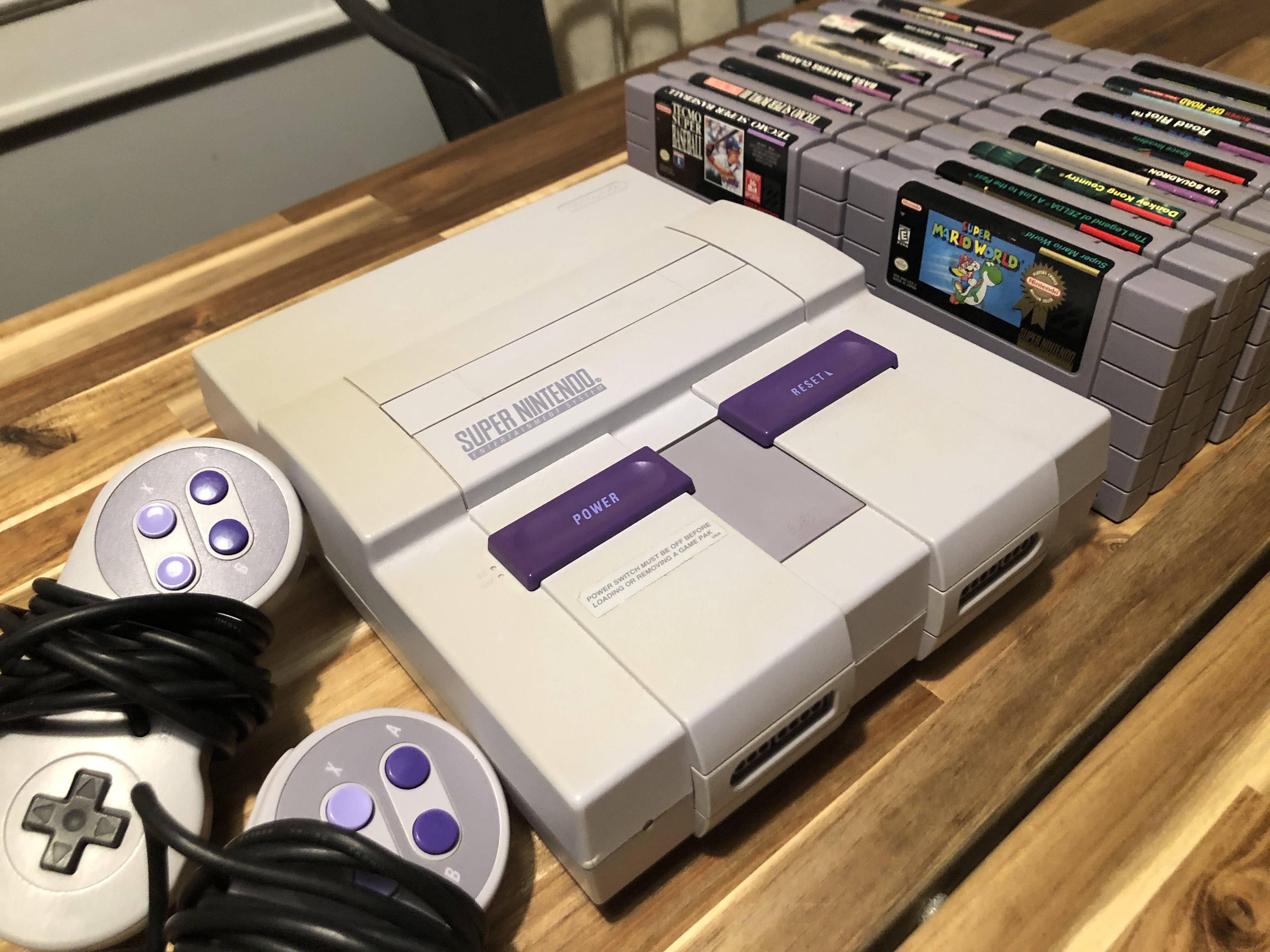
My original SNES and games for it from 1994.
Game Preservation
While I should have probably included this in the previous section, I think it’s worth noting the game preservation community as well. Preservationists, in some ways, go beyond collecting. They focus on repairing old consoles and old game cartridges, sometimes in highly technical ways. They are also actively backing up game ROM files and archiving manuals, and some go so far as to create documentation on the history of various parts of the gaming industry. If you are interested in this kind of stuff, I’d recommend you check out The Gaming Historian, The 8-bit Guy, LGR, and Odd Tinkering on YouTube. There are plenty more to choose from all over the internet, but those four do some outstanding work.
Retro Gaming as Investments
My original copies of Pokemon Red, Blue, Yellow, Gold, and Silver from the late 1990’s. The value of these carts have been rising for a while now.
Just like any old item games, consoles, and computers break down over time, which is what makes preservation so important to the community. As these things degrade and eventually make their way to the landfill, the supply is dropping. Where there may have been hundreds of thousands of NES cartridges in the late 90’s and early 00’s, they are getting harder and harder to come by – and often the ones you can find are damaged or worn out. In addition to this, kids who played these old games are hitting the age where they’re nostalgic for them and wanting to play them again. This increased demand and shrinking supply means prices are going up; and now they have been sky rocketing as investors have entered the market, buying up rare and expensive items for exponentially more than what they should have gone for and artificially inflating the prices on just about everything.
Where Should You Start?
Well, to answer that question, you have to start by figuring out what you’re interested in. Were you really into the Super Nintendo as a kid? Pick up an SNES and a few games, though be mindful that those prices are significantly higher than they should be at the time of writing this. Did you love your old PlayStation 1? Pick one up and grab a copy of Tony Hawk Pro Skater 2 along with Metal Gear Solid, Tomb Raider, and Twisted Metal! Do you, like my wife, absolutely love the Legend of Zelda series? Work on that!
The question of where to begin with retro gaming really depends on each person. Do you just want to play old DOS games from the 80’s and 90’s? Well you can always pick up a vintage PC, and track down the floppy disks or CD-ROM for the games you want, and get the whole thing set up; or you could just go to Steam or GOG and buy them for a couple of dollars to emulate them on your fancy new computer. Do you want to play old Nintendo or Sega titles? You can track down an NES or SNES, or a Master System or Genesis (Mega Drive for my friends across the pond), a few games and all of that; or you can virtualize it with something like the Virtual Console on the Wii, Wii U, or 3DS. You can even track down an NES Mini, SNES Mini, or Genesis Mini if you only had one or two big titles you wanted to play.
Do you want to have a few games that you can enjoy with your family around the TV every now and then, or do you want to have an entire game room with display cases and memorabilia? The nice thing is that it can start at one end, go to the other, and return again. For me, it started with picking up those two games that I missed playing from my college days and it led to getting more that I liked from back then. Eventually it led to picking up the other consoles I’d sold and games I never even had back then. Now, I have an entire corner of my den dedicated to my retro collection — some I’d owned before, and others I hadn’t. The point is, if you want to get into retro gaming, just dive in with what interests you.
A Word of Caution
A blue XBOX S Controller next to a decorative Pac Man light.
Before we wrap this up, I should caution those of you who may be new to it.
Watch out for scams. There is a lot of fraud out there surrounding retro gaming, and gaming in general. Scalpers are buying up items and selling them at significantly higher prices.
Buy from reputable sellers. If you buy online, be careful. Places like eBay are packed full of reproduction cartridges (repro carts) that may look like the real deal, but are not. If you just want to play the game, that may not be a huge deal, but if you’re a collector or someone who is interested in having some games that might be worth something in the future, there’s nothing worse than picking up a copy of Pokemon Blue from eBay only to realize later that it’s a fake.
Don’t trust eBay prices. Speaking of eBay, they really aren’t a good indicator of the market value for games – even when filtered by sold items. Instead, shop around and see what you can find. Sometimes you will find a good deal on eBay – I’ve gotten several myself – but other times you’ll just end up paying 10-20% higher than you probably should. That’s not much on a $10 copy of Oddworld: Abe’s Exodus with free shipping, but if you’re thinking about dropping over $100 for a copy of Metal Gear Solid: The Twin Snakes on the GameCube, that will hurt.
Buy local whenever possible.This should go without saying, but if you can find a game or console (or anything else really) from a local seller, or a mom-and-pop store you should definitely give that a look. Often times local sellers aren’t asking as much as someone on eBay, and they may be willing to negotiate on the price, or even trade for something else. Meeting up, or going to a local shop also gives you the opportunity to inspect and test it. Obviously you can’t test out an XBOX game in the middle of a grocery store parking lot, but you can at least check for scratches or other damage that might be a deal-breaker. Also, you’re supporting a local business, which is always a cool thing to do.
Check with friends and family. You’d be surprised at the stuff people hold onto that they want to get rid of, but just never get around to it. Often times, if you’re nice, they might just give it to you to get it out of their house. By no means should you expect to get it, just because, but it’s often a mutually beneficial arrangement. A good portion of my collection (both games and computers) were given to me by friends and family who didn’t want the stuff anymore. A co-worker gave me an old CRT television that had been sitting in his garage since 2010. Another co-worker gave me his barely used Wii U and Xbox 360 with all of the games they had for them because they never played them and didn’t want to keep them. My nephew gave me his broken PlayStation 3 that he was about to throw away, so I fixed it and now we use it as our Blu-Ray player. My ThinkPads and all of my Apple machines were all given to me by friends and family who didn’t want them anymore and didn’t know what to do with them. All you have to do is ask. And lastly,
Don’t overlook thrift stores. While most of my collection was either mine from my childhood, or bought at various places, several came from thrift stores. Often Goodwill’s in nicer areas have a pretty good selection, and you can sometimes find the random PS2, XBOX, or SNES game at a local thrift store in smaller towns; and typically they are only asking $1-2, $5 max and that is a great deal. You can also sometimes find controllers and other peripherals there. For my main desktop setup I’m using a vintage Dell QuietKey SK-1000REW keyboard that I picked up at my local Goodwill for $3 and it works perfectly.
I hope that this was of some use and/or enjoyment to you. Retro gaming really is a fun hobby, and it’s something that you can share with your kids or other loved ones too. My kids love playing all of my old games as well as our newer ones. The oldest is working through Kingdom Hearts 2 on the PS2, my middle son has been working on his island in Animal Crossing New Horizons. The youngest is going to town on Minecraft, and my wife is working on The Legend of Zelda: Majora’s Mask. I am working on my annual play through of the first generation Pokemon games. There’s something for all of us, and it’s a lot of fun to see my kids enjoy the things I loved as a kid too.
I’d love to hear what your experience is. Are you a gamer? A collector? What are you working on at the moment? Are you a normie who’s looking to get into it? Let me know what you think about these posts so far. I’ve got one more planned so far, so next I’ll cover retro and vintage audio tech. Until then, take care.
I like retro tech. Like, really like retro tech. I would say in a given week I spend about 40% of my computing and/or gaming time on vintage or retro devices; whether that be writing on a computer that most people wouldn’t give a second thought to, or playing games that are older than at least two of my children combined. It’s a weird hobby, I know, but it’s one that I — and quite a few others like me — really enjoy.
Vintage Computing
Now let’s be real here; when I need to get real work done – whether that be at my day job in IT, or taking care of household responsibilities – I will use a modern computer like everyone else. Windows 10 and 11 are much more secure than Windows 98 or XP, and modern macOS is far and away more usable today than older versions of OS X, not to mention the Classic Mac OS of the 80’s and 90’s. But while modern computers are useful, they just aren’t that fun to me anymore. In fact, the only modern operating systems I still find genuinely enjoyable to use on a regular basis are Linux, OpenBSD, and Haiku. There is just something charming about old tech. The hardware build quality was usually far above what we’re used to today, and the software – while limited by today’s standards – is so much more efficient and lightweight without sacrificing quality.
The Haiku operating system (beta 2) running on a vintage IBM ThinkPad.
The number one thing I hear from people when they ask me why I am into vintage computings, is why would you want to use something that is old and less powerful than what you have today? Truth be told, there are a few answers to this question.
Old Machines have a Light Footprint
Modern PCs and modern Macs need A TON of resources to operate even at their lowest system requirements. For example, to run Windows 11 you need AT LEAST:
A dual core, 1 GHz CPU from Microsoft’s “approved list”,
4 GB of RAM, and I kid you not,
64 GB of storage… just for the operating system
The 4 GB memory requirement is pretty standard at this point, and has been for some time but 64 GB of disk space? That is insane to me, and this number has been increasing for going on fifteen years now. You have to actually go all the way back to Windows XP to find a system with reasonable requirements with its 64 MB memory and 1.5 GB storage minimum needs. And lest you think I am only here to pick on Windows, Apple isn’t much better with its 44 GB of disk space for the latest version of macOS 12 Monterey. Of course, that’s for a fresh install. If you’re upgrading from Big Sur, you need the same 64 GB of space that Windows 11 requires.
Even some modern GNU/Linux distros have been falling into this trap. Ubuntu. for example, requires a hearty 25 GB of space in addition to the now standard 4 GB of memory. Fedora requires 10 GB of space, though it’s much more respectable with its 1 GB memory requirement but we all know that wouldn’t be a terribly great desktop experience. You end up having to look at smaller lightweight distros and desktop environments to try and get close to something along the lines of a retro system.
For example, my preferred vintage laptop is a T42 ThinkPad from 2004. I love that laptop, and really enjoy writing on it. I’ve blown away and re-installed more operating systems that I can recall ranging from alternatives like FreeDOS and Haiku, to vintage Linux distros, and I even got Windows 7 to run (albeit quite slowly). It’s a 32-bit Pentium M laptop. I upgraded the memory to it’s maximum capacity of 2 GB and it runs older systems magnificently. FreeDOS, XP, and Haiku all ran great, and it’s currently got Windows 2000 Professional installed which has been a delight. The one time I was able to actually run a modern Linux distribution with up-to-date packages and security patches required me to install Arch by modifying the wiki guide to work with the deprecated 32-bit kernel. It took a little while, but the install worked and it ran great until I tried installing a modern desktop environment to use. I’m not even talking about Gnome or KDE. I installed the MATE desktop and it crippled the machine. Even XFCE gave it a run for it’s money.
The classic Mac OS “About This Computer” window.
All in all, vintage machines just required so much less in terms of hardware and it was fantastic. They’re not the flashiest things on the planet, but they work well, and can still look pretty nice. For instance, I am actually writing this post in AppleWorks 6 on a blue and white PowerMac G3 from 1999 running classic Mac OS 9.2.2. The desktop is your traditional desktop with a few icons and a menu bar. I’m using the blueberry lolipop theme which matches the G3 tower’s design language and it gives the desktop a bit of character we don’t see much of anymore; but the most important thing about it is that it’s running amazingly well for a nearly twenty-three year old machine on 320 MB of memory (it only required 40 MB) and the OS only take up 150 MB of disk space. That is what I call a light footprint.
Old Software FTW!
Yes, modern software is undeniably better when it comes to compatibility and features. Yes, modern software benefits from decades of Internet developement allowing for easier and faster development and distribution of updates and patches. Yes, modern software has an inherent advantage of utilizing cloud-based technologies to seamlessly and flawlessly sync data across networks and devices in an instant. That is all great, and honestly really cool. Those things are the reason I use modern computers and software. It makes a hybrid work schedule easy to pull off when I can have everything from my iMac in the office at work — files, apps, browser tabs, and bookmarks — automatically sync over to my MacBook at the house; but there is something nice about using old software, and the manual nature of it.
AppleWorks 6 being installed.
Consider, though, the way we used to do things. If you wanted to take a file from one computer to another, you had to figure out a way to transfer it. Today, we might send it over as an email attachment, or share a link to the file in our DropBox, OneDrive, iCloud Drive, or Google Drive. If your sharing from one Apple device to another, maybe you’ll AirDrop it over. Regardless of the method, it’s likely that you’d be using some sort of wireless and/or internet based solution to make it happen. In the old days, we would use some sort of removable media: a USB flash drive, a CD-R/RW, or a floppy disk. That was how I used to print all of my college papers out. I would do the work on my Windows XP desktop in my dorm room, throw the file onto my trusty 512 MB flash drive (USB 1.1 mind you, so it was slow as molasses), walk down to the library on campus, and print it from there. Sure, it was a bit of a pain back then, and if I’d had access to a printer in my room, or a better digital way of handling it, I probably would have gone that route; but having to (in a sense) physically manage our data made us more responsible with our data. It only took losing hours of work one time to remember to save often, and it only took one time of losing some family photos to learn the importance of backups.
I will not argue that new software isn’t better, because I would say it’s pretty obvious that it is. But it often lacks the manual elelments of computing that let you really feel like you are operating your computer rather than just experiencing it.
The Joys of Troubleshooting
Not all of the vintage computing experience is sunshine and rainbows, though. It’s old tech and that means there will be problems. Sometimes it’s a corrupted registry key in Windows — though to be fair, that’s something you’ll eventually run into on modern Windows too. Sometimes your vintage Mac won’t load your OS 8 or 9 instance properly and you have to spend an hour or two digging through ten to fifteen-year-old forum posts and blogs trying to figure out how to rebuild the desktop and why in the world that’s even a thing?! Sometimes you’ll have to figure out how hard drive jumpers work so you can replace the dying IDE drive in your old PC, only to find an excellent community of enthusiasts who have been there long before you and now there are special adapters that let you use modern hardware to upgrade your vintage machines.
Mac OS 9.2.2 broken desktop being rebuilt by the system.
As frustrating as technical errors and failures can be, they help us to learn and grow and that’s not just limited to old computers. In 2010 I had enough of Windows Vista and rather than upgrading to Windows 7 or downgrading to XP, I jumped over to Linux. There was a big learning curve. There was no C: drive, no registry, and the file system was completely different. I had to do a lot of things I didn’t understand in a command line terminal but somehow it fixed my sound and wifi drivers so I could go to YouTube, but eventually I learned what those commands did and started to get it.
In 2016, my Linux laptop died. I plugged it into the wall to charge as I did every day, there was a pop, and the thing never turned on again so I started using an old MacBook from 2009 that my wife and I had inherited from her grandfather. At first I really didn’t like it. OS X struck me as a really weird sort-of-but-not-really-Linux, but eventually I learned the differences in the Mac and Linux file systems. They were similar in someways, but quite different in others. The way applications were installed and run was very different. The user interface and the limitations that Apple used took A LOT of getting used to. It took me about ten minutes to figure out that I had to click a silly little lock icon to make admin changes in System Preferences because I was used to working in an environment that gave me the option to do stupid and dangerous things like permanently delete my entire root file system with a single command and password.
I bring these examples up because they required me to read and to research to solve my problems. It’s a big reason why I’m in the career I am today. Had I never jumped over to Linux, I probably wouldn’t have taken the time to learn anything other than Windows. Now I manage Linux servers and endpoints at work on a near-daily basis. If my laptop hadn’t died I know I never would have given macOS a chance, but now it’s my daily driver at work and at home, and I’m responsible for supporting all of the other Mac users at work.
Professional developement aside, troubleshooting can be fun — infuriating at times, but still fun. Last year I took my first step into the crazy world of classic Mac OS. It’s cool, but it’s weird. I had no idea going into it that it wasn’t Unix-based like OS X and Linux. I spent a good five to ten minutes looking for the terminal, but there wasn’t one. One day I booted the computer and my desktop didn’t load. I found out later that sometimes that’s a thing in classic Mac OS and it has to be rebuilt. I also found and joined up with a small but robust community of vintage Mac users who share my interest for this cool old tech and they’ve pointed me in the direction of online resourcses for classic Mac software and hardware upgrades. It’s been a really cool experience overall.
Why Go Retro in 2022?
There’s more I could say, but this post is already getting quite long and I have plans for a part 2 and 3 on retro gaming and retro audio respectivley so I will do my best to be brief.
Retro-living isn’t for everyone. If you’re one of those people who just uses whatever technology they’re given or you just really don’t care about technology at all, then it’s safe to assume you probably wouldn’t care about this kind of stuff. Also, if that’s you, why are you still reading this? I mean, you’re welcome to stay, I’m glad you’re here… it’s just kind of weird, you know?
Retro-living is about having fun and using things you enjoy. I use a twenty-three-year-old Apple destkop and an eighteen-year-old IBM laptop because I enjoy them. I like the look, and the feel of them. I like the software they run, and I like being able to work without distraction because, to be honest, getting these things online isn’t the easiest task, and even then most websites won’t work on their old browsers anyway — and before anyone says anything, I know there are alternative browsers that still support many of these old systems, but I’m not talking about them right now.
A 1999 PowerMac G3 running Mac OS 9.2.2, and a 2004 IBM X40 ThinkPad running FreeDOS 1.2.
I play retro games because they’re fun. A lot of my collection is made up of games that I’ve had since I was a kid, but a lot of it is also made up of games and consoles I never had when I was younger. Now I’m older, have a steady income, and the liberty to pick up things I wish I could have enjoyed when I was younger. That doesn’t mean I spend a lot of my time playing them because I’m busy, but they’re there for when I do have time.
I like to use retro audio gear like my Walkman, Discman, and iPod because they’re just enjoyable to use and there’s something cool about experiencing the evolution from fully analog to digital/analog and beyond; not to mention they’re great conversation starters.
So I guess the big take away is that there’s no one good reason to embrace retro and vintage tech in 2022, but if there’s something that you miss from your childhood or young adulthood why not try to find it and enjoy it now? And as much as technology has progressed over the last thirty to forty years, it’s not all been for the better. Sometimes embracing an older way of doing things can also be good for your mental health.
If there is something that jumps out to you that you just love to use, or that you remember fondly from years past, I’d love to hear about it as well. Until next time, take care everyone.